A botched website migration can wipe out 40 to 60 percent of organic traffic in its first week. A well-executed one produces a site that outranks the original within 60 days, on better infrastructure, at a fraction of the hosting cost. The difference between the two outcomes comes down to how carefully the process is planned and how many of the common mistakes are avoided upfront.
This guide covers everything you need to know about how to migrate WordPress Site to Astro: what to decide before touching any code, the complete step-by-step process, the mistakes that cause most migrations to fail, and what good looks like on the other side. Whether you are doing this yourself or briefing an agency, this is the reference you need.
Things to Keep in Mind When Migrating a WordPress Site to Astro
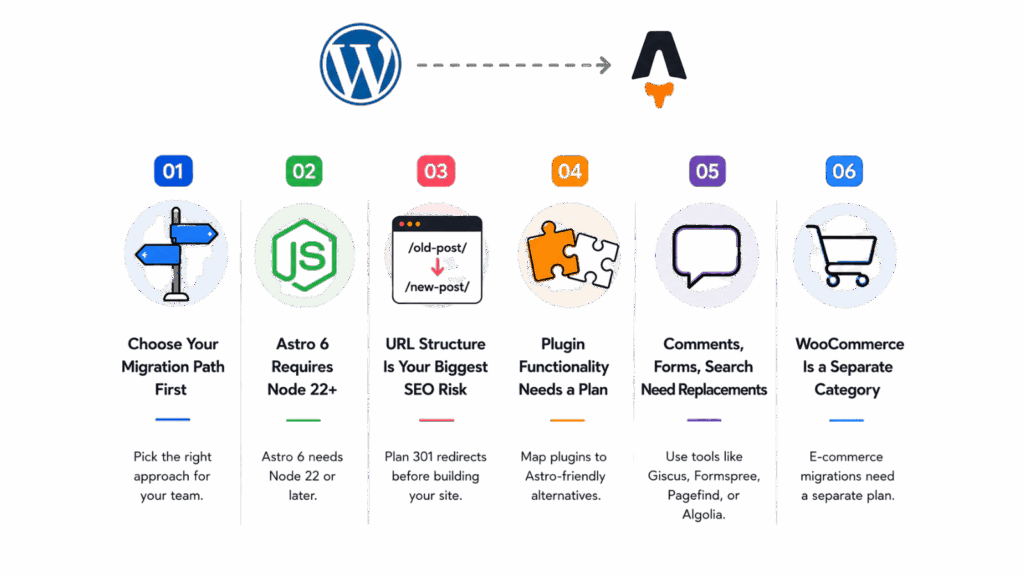
Before writing a single line of code, there are decisions and realities that shape every step of the wordpress migration to astro process. Getting these straight upfront saves weeks of rework.
Choose Your Migration Path First
There are two fundamentally different approaches to migrating wordpress site to astro, and choosing the wrong one for your situation creates problems that cannot be fixed later.
Path 1: Full rebuild with Markdown content.
WordPress is retired. All posts and pages are exported and converted to Markdown files stored in Git. Editors update the site by editing files or using a connected headless CMS. This path produces the best performance and the lowest ongoing cost, but it requires either developer capacity for content updates or a headless CMS layer for non-technical editors.
Path 2: Headless WordPress as a CMS.
WordPress continues running in the background. Editors keep working in wp-admin exactly as before. Astro fetches content via the WordPress REST API or WPGraphQL at build time, producing static HTML without a PHP runtime serving requests. A webhook from WordPress triggers an Astro rebuild on each publish. This path is lower risk for teams with non-technical editors and gets you Astro’s performance without disrupting the editorial workflow.
The right choice depends on one question: do non-technical editors need to keep working in wp-admin? If yes, headless WordPress is the safer path. If no, a full rebuild is simpler to maintain long-term.
Astro 6 Requires Node 22 or Later
Astro 6, which shipped on March 10, 2026, drops support for Node 18 and Node 20. If your deployment environment is pinned to an older Node version, this is a dependency to resolve before starting the migration.
URL Structure Is Your Biggest SEO Risk
WordPress frequently uses date-based URL structures such as /2024/06/my-post-title/ or category-prefixed URLs such as /category/tutorials/my-post/. Astro typically uses flat URLs like /blog/my-post-title/. If those URLs change during migration without proper 301 redirects in place, every indexed page that returns a 404 loses its accumulated PageRank. Planning the redirect map before building anything is not optional.
Plugin Functionality Needs a Replacement Plan
Every active WordPress plugin represents functionality that needs to be mapped to an Astro equivalent before migration starts. Contact forms (Contact Form 7, WPForms, Gravity Forms) migrate to Formspree, Web3Forms, or Astro Actions. SEO plugins (Yoast, Rank Math) migrate to frontmatter meta fields and the astro-seo package. Comments migrate to Giscus or Disqus. Search migrates to Pagefind for static sites or Algolia for larger catalogs. Completing this inventory upfront prevents discovering mid-build that a critical feature has no replacement.
WooCommerce Is a Separate Category
E-commerce migrations are significantly more complex than content site migrations. If WooCommerce powers your business, that is a separate workstream that requires its own evaluation. Headless WooCommerce via WPGraphQL and WooGraphQL is one path; rebuilding the catalog on Shopify, Snipcart, or Stripe is another. This guide covers content site migrations.
How to Migrate WordPress Site to Astro: Step-by-Step Guide
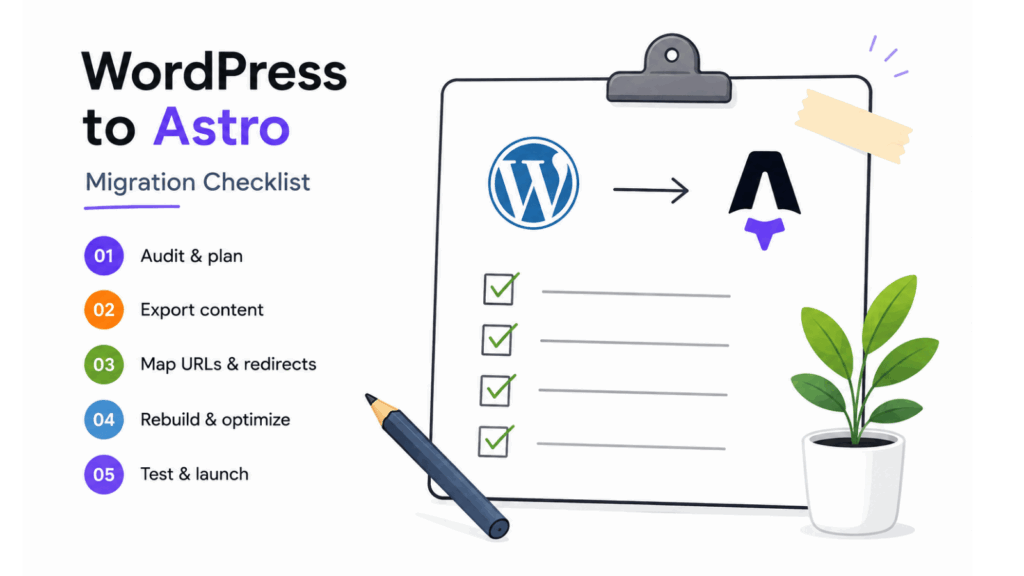
Step 1: Audit Your Current WordPress Site
Before touching anything, document what you have. Use Screaming Frog, your existing sitemap at /sitemap_index.xml, or Google Search Console to produce a complete URL inventory. Identify your top 50 pages by organic traffic in Google Analytics. These are the pages where redirect accuracy is non-negotiable. Catalog every active plugin, every custom post type, every ACF field, and every media file in /wp-content/uploads/.
Compare top companies for Astro development and website migration.
Step 2: Export Your Content
WordPress gives you several content extraction options, ordered here from simplest to most complete.
WXR XML export. Go to Tools → Export in wp-admin and export all content. This gives you a snapshot of all posts, pages, categories, tags, and metadata. Convert it to Markdown using the wordpress-export-to-markdown npm package. Review the output: Gutenberg block comments and custom shortcodes will not convert cleanly and need manual attention.
WordPress REST API. Available by default at /wp-json/wp/v2/posts and /wp-json/wp/v2/pages. No plugin installation required. Best for scripting an automated conversion to Markdown files with YAML frontmatter.
WPGraphQL. Install the WPGraphQL plugin on the source WordPress site and query exactly the fields you need with cursor-based pagination. Best for large catalogs and for headless WordPress setups where Astro will continue fetching from WordPress as a data source.
Note on ACF fields. Advanced Custom Fields data is stored in wp_postmeta, not in the post content. It does not appear in a standard XML export. You need the REST API with the ACF to REST API plugin, or WPGraphQL, to extract it.
Download the entire /wp-content/uploads/ directory and reorganize media into a flat structure under public/images/ in your Astro project.
Related articles:
Compare both platforms, or jump straight to the migration process.
| WordPress | Astro equivalent |
|---|---|
| Posts | Entries in a blog Content Collection (Markdown/MDX files) |
| Pages | .astro files in src/pages/ |
| Categories / Tags | Fields in the collection Zod schema; filtered at query time |
| Custom Post Types | Separate Content Collections, each with its own schema |
| ACF custom fields | Fields defined in the Zod schema |
| Media library | Files under src/assets/ (optimized at build) or public/ (served as-is) |
| Menus | Hard-coded arrays or a JSON content collection |
| Yoast meta descriptions | Frontmatter fields in each Markdown file |
Step 4: Scaffold the Astro Project
npm create astro@latest
npx astro add mdx sitemap tailwind cloudflare
Use the minimal template and add integrations explicitly. Define your Content Collection schema in src/content.config.ts using Zod:
Place your exported Markdown files in src/content/blog/. The schema validates every file at build time. A missing required field fails the build rather than shipping broken HTML.
Step 5: Preserve Your URL Structure
This is the single step most responsible for post-migration SEO losses in a wordpress migration to astro. Create a complete mapping from every WordPress URL to its Astro equivalent. Add 301 redirects to your public/_redirects file (Cloudflare Pages and Netlify) or in astro.config.mjs. Do not forget the RSS feed:
/feed/ /rss.xml 301
/wp-admin/ /404 410
/wp-login.php /404 410
If your WordPress used date-based URLs and your Astro site uses flat slugs, every date-based URL needs an explicit redirect. Pattern-based wildcard redirects can fail on edge cases; an explicit one-to-one mapping is more reliable for SEO-critical pages.
Step 6: Rebuild Dynamic Features
Replace each WordPress plugin function with its Astro equivalent:
-
Forms: Formspree, Web3Forms, Resend, or Astro Actions
-
Search: Pagefind (static, ~50KB, zero dependencies) for most sites; Algolia for large or faceted catalogs
-
Comments: Giscus (GitHub-backed, free) or Disqus
-
RSS feed: @astrojs/rss integration, generating a feed at src/pages/rss.xml.ts
-
SEO metadata: Frontmatter fields in each file, surfaced via a shared layout component
Step 7: Migrate and Optimize Images
Astro’s built-in <Image /> component, via astro:assets, converts images to AVIF and WebP, generates srcset, adds lazy loading, and locks dimensions to prevent Cumulative Layout Shift. Move images from WordPress’s /wp-content/uploads/ to src/assets/images/ and update all references in your Markdown frontmatter. Images in public/ are served as-is without optimization.
Step 8: Deploy to Staging and Validate
Deploy the Astro build to a preview URL on Cloudflare Pages, Netlify, or Vercel before touching DNS. Run through this validation checklist:
-
Spot-check the top 20 pages by organic traffic for layout and content accuracy
-
Test every 301 redirect with curl -I and confirm each returns the correct status code
-
Verify all meta tags with browser dev tools or an SEO crawler
-
Validate structured data with Google’s Rich Results Test
-
Run Lighthouse on five to ten key pages and confirm scores meet expectations
Step 9: DNS Cutover
Lower your DNS TTL to 300 seconds at least 24 hours before cutover. Switch A or CNAME records to the new host. Keep the WordPress instance running on a backup subdomain for at least 30 days as a fallback. Monitor for any propagation issues before decommissioning.
Step 10: Post-Launch Validation
Submit the new sitemap to Google Search Console on launch day. Monitor Search Console for crawl errors and coverage reports daily for the first two weeks. Most sites doing a wordpress migration to astro see a temporary traffic dip as Google reprocesses redirects, followed by recovery and improvement within 60 days if URL preservation was handled correctly.
Take the Migration Off Your Plate Entirely
Migrating a WordPress site to Astro involves a lot of moving parts: content extraction, URL mapping, redirect configuration, image optimization, plugin replacement, and deployment. One missed redirect or lost meta description can cost weeks of search traffic. Enacton handles the full wordpress migration to astro process — from audit to launch — so none of those details get missed.
[Get a Free WordPress Migration Assessment]
Mistakes to Avoid When Migrating from WordPress to Astro
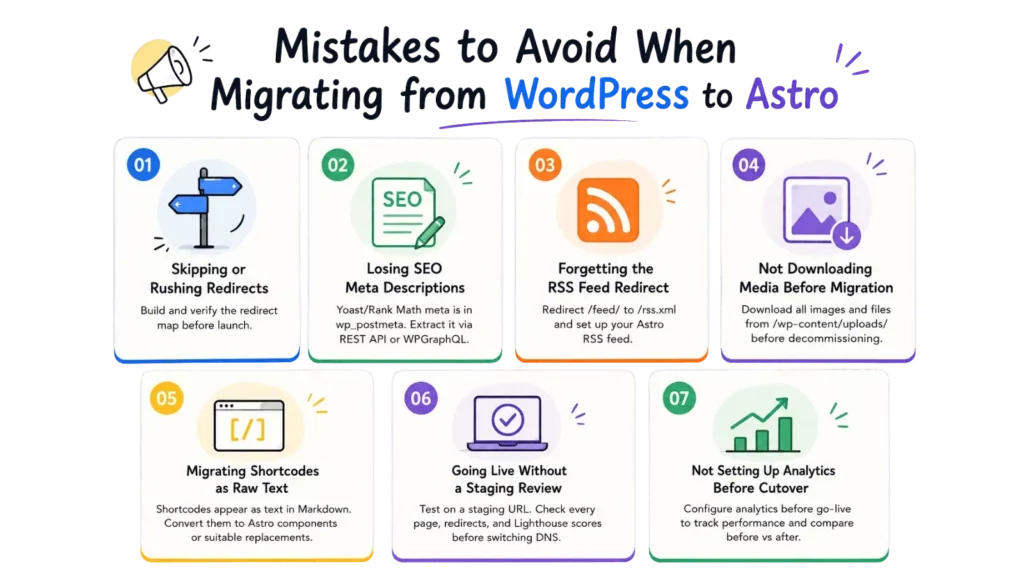
1. Skipping or Rushing the Redirect Map
Missing redirects is the single most cited cause of post-migration organic traffic loss. Every indexed URL that returns a 404 loses its accumulated search equity. Build the redirect map before you build anything else, and verify every redirect with curl -I before go-live. Do not assume pattern-based wildcard redirects will catch every edge case on high-traffic pages.
2. Losing Yoast or Rank Math Meta Descriptions
Yoast and Rank Math store SEO metadata — title tags, meta descriptions, Open Graph images — in WordPress’s wp_postmeta table, not in post content. They do not appear in a standard WXR XML export. You need the REST API or WPGraphQL with a custom query to extract them. Missing this step means every post goes live with no meta description, which affects both search snippet quality and click-through rates.
3. Forgetting the RSS Feed Redirect
WordPress generates its RSS feed at /feed/. Email subscribers and RSS readers pointing to that URL will break if it returns a 404 after migration. Set up a 301 redirect from /feed/ to /rss.xml and configure your new Astro RSS feed using @astrojs/rss before go-live.
4. Not Downloading Media Before Migration
Images and files in /wp-content/uploads/ need to be downloaded and moved to the Astro project before the WordPress instance is decommissioned. Teams that cut DNS before completing media migration end up with broken image references across their entire content archive.
5. Migrating Shortcodes as Raw Text
WordPress shortcodes such as “gallery”, “contact-form-7”, and custom-coded shortcodes will appear as literal text in converted Markdown files. Each shortcode used in content needs to be identified in the audit and converted to either an Astro component or a third-party replacement before the content goes live.
6. Going Live Without a Staging Review
Switching DNS to a site that has not been reviewed on a staging URL is the most common cause of post-launch emergencies. Deploy to a preview URL, walk through every section of the site manually, run automated redirect checks, and verify Lighthouse scores before touching production DNS.
7. Not Setting Up Analytics Before Cutover
Analytics tracking needs to be configured on the new Astro site before go-live so traffic data is continuous. Teams that set up analytics after DNS cutover lose the before-after comparison that confirms the migration is performing as expected.
Conclusion
Migrating your WordPress site to Astro is one of the highest-leverage technical decisions a content-driven business can make. A published Lighthouse benchmark shows LCP improving from 0.81 seconds on WordPress to 0.44 seconds on Astro on the same content, a 46 percent improvement. Core Web Vitals pass rates move from 38 percent to approximately 60 percent. Hosting costs on Cloudflare Pages or Netlify drop to near zero. The security attack surface disappears entirely. And the resulting codebase is one that AI coding agents can read, edit, and deploy without any database or admin panel in the way.
How to migrate a WordPress site to Astro correctly comes down to planning: choosing the right migration path before starting, mapping every URL before building, and verifying every redirect before cutting DNS. Done in that order, the wordpress migration to astro produces a site that outperforms its predecessor on every measurable dimension.
Enacton’s Astro migration service handles the entire process for you. From auditing your WordPress setup and planning the content architecture, to exporting and converting content, configuring redirects, replacing plugin functionality, and deploying to a CDN — the team manages every step.
Find out whether your WordPress site is ready for an Astro migration.
FAQs
Will I lose my SEO rankings when migrating WordPress site to Astro?
Not if the migration is handled correctly. The five non-negotiables are: 301 redirects for every URL that changes, meta tag and structured data parity, Core Web Vitals verified on a staging build before go-live, sitemap submitted to Google Search Console on launch day, and post-launch monitoring for crawl errors. Research from ATIL shows a botched migration can drop organic traffic 40 to 60 percent in week one. Done correctly, most sites see ranking improvements within 60 days due to performance gains.
What is the easiest way to export WordPress content for an Astro migration?
The fastest path for most sites is the WXR XML export (Tools → Export in wp-admin) combined with the wordpress-export-to-markdown npm package to convert posts to Markdown files with YAML frontmatter. For sites with Advanced Custom Fields or custom post types, the WordPress REST API gives more complete access to all stored data. For headless WordPress setups, WPGraphQL is the most flexible extraction tool and continues to serve as the data source after migration.
How long does a wordpress migration to astro take?
A personal blog with content in good shape can be completed in one to three days. A small business marketing site typically takes one to three weeks. Sites with WooCommerce, complex custom post types, or hundreds of pages with Advanced Custom Fields take longer. The most time-consuming part is usually URL mapping and redirect verification, not the content conversion itself. For budgeting and agency pricing benchmarks across different site sizes, review our breakdown of how much Astro development costs.
Can I keep using WordPress after migrating to Astro?
Yes, through the headless WordPress pattern. WordPress continues running as a CMS with editors working in wp-admin as before. Astro fetches content via the WordPress REST API or WPGraphQL at build time. A webhook triggers a rebuild whenever content is published. This approach preserves editorial workflows while giving the frontend Astro’s full performance and security profile.
What replaces WordPress plugins in an Astro site?
The most common replacements are: Formspree or Astro Actions for contact forms, Pagefind for site search, Giscus for comments, @astrojs/sitemap for sitemaps, @astrojs/rss for RSS feeds, and frontmatter fields with the astro-seo package for SEO metadata. Most plugin functionality either has a direct Astro integration equivalent or can be replaced by a lightweight third-party service.
Is headless WordPress with an Astro frontend a good long-term architecture?
Yes, for teams that need to preserve an editorial workflow. Editors continue using the familiar wp-admin interface. The Astro frontend gets rebuilt on each publish via webhook. The main ongoing costs are WordPress hosting (since the PHP/MySQL instance stays running) and occasional WordPress security updates. The full static rebuild path eliminates those costs entirely but requires editors to use either Git-based editing or a separate headless CMS.