ZenML rebuilt 2,224 pages and 20 CMS collections from Webflow to Astro in approximately one week. Using Claude Code in a multi-model AI workflow, the team saved $800 per year in subscription fees and described the resulting workflow as fundamentally more capable than what Webflow allowed. That case study, published on the ZenML engineering blog in March 2026, is the most detailed public account of a Webflow migration to Astro at scale and it captures why teams who have outgrown Webflow keep choosing Astro as the destination.
Webflow is excellent design software. The visual editor, the CMS, and the interactions panel are genuinely impressive for teams without developers. But migrating a Webflow site to Astro is a decision that comes from specific limits: CMS item ceilings, monthly subscription costs that scale against you, an interaction engine that cannot be exported, and a platform that AI coding tools cannot touch. When those limits start affecting business outcomes, the migration conversation begins.
This guide covers how to migrate a Webflow site to Astro correctly: what to resolve before writing any code, the complete step-by-step process, and the mistakes that cause most migrations to lose search traffic or take twice as long as planned.
Things to Keep in Mind When Migrating a Webflow Site to Astro
The Code Export Is Not a Starting Point
Webflow offers a code export feature on paid Workspace plans. The natural assumption is that exporting your code gives you something to work from. It does not. The code export strips all CMS content, so every dynamic page exports as an empty template. The CSS file contains Webflow’s entire framework, not just the styles your site uses. Interactions and animations export as JavaScript that depends on Webflow’s proprietary Webflow.js runtime engine — they stop functioning outside the Webflow environment. BrowserCat’s migration guide states this directly: every migration approach works from your published site or the Webflow API, not from the code export. The export is a dead end.
Plan your Webflow migration to Astro around two real sources: the Webflow CMS API for structured content, and the published live site for page content, layout, and images.
Webflow Interactions Must Be Rebuilt from Scratch
Webflow’s interactions are stored as JSON configuration that Webflow’s JavaScript engine interprets at runtime. They are not CSS animations. They are not transferable to any other framework. Every scroll-triggered reveal, hover effect, and page transition needs to be rebuilt in code during the migration. The tools used for this — GSAP for complex timelines, Motion One for lightweight animations, CSS @keyframes and IntersectionObserver for simpler patterns, and Astro’s built-in View Transitions for page-level transitions — are more portable and more performant than Webflow’s proprietary engine. But the rebuild time needs to be budgeted explicitly.
The ZenML team handled complex Webflow animations by recording them as video, having Claude Code extract frames, and generating CSS animation equivalents from the frame descriptions. It is a creative workaround, but it illustrates that there is no clean automated path.
Webflow’s Class Names Have No Semantic Value
When you look at Webflow’s HTML output, you encounter class names like w-layout-grid, div-block-47, hero-section-2, and combo classes stacked five deep. These names have no relationship to what the element actually does in the design. Do not attempt to migrate or adapt Webflow’s CSS. Rebuild the visual design using Tailwind CSS (the dominant choice for Astro projects) or Astro’s built-in scoped styles, using the published site and screenshots as the visual reference. Migration specialists find that 30 to 40 percent of a Webflow site’s pages can be consolidated or dropped entirely during the audit phase — treat the migration as an opportunity to clean up the site architecture, not just replicate it.
Plan for Ongoing Editorial Workflows Before Starting
If non-technical editors currently use the Webflow Designer to update content, they need a replacement after the migration. Astro Content Collections work well for developer-managed content. For editorial teams, the common headless CMS pairings are Sanity (best schema flexibility), Storyblok (visual editor closest to the Webflow experience), Decap CMS (Git-backed, free), and TinaCMS (inline visual editing, Git-backed). Choosing and configuring the headless CMS is part of the migration scope, not an afterthought.
Timeline: Plan for 8 to 12 Weeks for a Full Project
A standard Webflow migration to Astro takes 8 to 12 weeks from content audit to launch, covering design system rebuild, data migration, and strict SEO and performance testing before the final move. The ZenML case study achieved a one-week timeline with heavy AI assistance and a dedicated team. Smaller sites with a developer experienced in Astro can complete the migration faster. Sites with complex interactions, large CMS collections, or active editorial teams take longer.
Step-by-Step Guide: How to Migrate a Webflow Site to Astro
Step 1: Audit the Full Site Scope
Before opening a code editor, document everything that needs to be migrated. Every failed migration starts the same way: someone opens their code editor before understanding what they are migrating.
Run a full crawl with Screaming Frog or a similar tool on the published site. Pull your URL inventory from the Webflow sitemap. Cross-reference with Google Search Console to identify your top pages by organic traffic — these require the most careful redirect handling. Catalog every CMS collection, every field type in each collection, and every reference relationship between collections. List every interaction on the site and classify it as simple (CSS replacement), moderate (GSAP), or complex (requires recorded-video approach). Note every form, membership gate, and e-commerce element.
This audit becomes the migration plan. Each item has a known replacement strategy before work begins.
Step 2: Export CMS Data via the Webflow API
The Webflow CMS API is the primary content source for structured data. It provides programmatic read access to every collection and every item. For most teams, the CSV export from the Webflow Collections panel (Collections → Select Collection → Export) is the fastest starting point. Per Webflow’s official help center, reference and multi-reference fields export as plain text and require manual reconstruction of relational data.
For large collections or complex field relationships, script the extraction using the Webflow API directly. This gives you complete control over field mapping and handles reference fields more reliably than CSV.
Save every piece of exported CMS data before touching any site settings. You cannot re-export content from a cancelled Webflow subscription.
Related articles:
Step 3: Extract Page Content and Download All Assets
For static pages — homepage, about, services, landing pages — crawl the published Webflow site. AI coding agents (Claude Code, Cursor, Windsurf, Cline) are the most effective tools for this. Set up an Astro project first with npm create astro@latest, then direct the agent to your Webflow URL. The agent crawls and extracts: visiting each page, reading the rendered HTML, extracting text content, identifying the page structure (hero sections, feature grids, testimonials, CTAs), and downloading images.
Download every image and asset referenced on the site. Webflow hosts assets on its CDN. Do not reference Webflow asset URLs in the new Astro project — they are tied to your Webflow account and will become inaccessible after cancellation. Move all assets to public/images/ or src/assets/ in the Astro project.
Step 4: Scaffold the Astro Project
npm create astro@latest
npx astro add mdx sitemap tailwind
Use the minimal template. Do not use a starter theme — they add complexity you will have to undo. Add only the integrations you need for this specific site.
For each Webflow CMS collection, define an equivalent Astro Content Collection schema using Zod. Map Webflow field types to Zod types:
| Webflow CMS field | Astro Content Collection schema |
|---|---|
| Plain text | z.string() |
| Rich text | Markdown body (file body, not frontmatter) |
| Image | Imported asset reference or URL string |
| Date | z.date() |
| Reference | Reference to another collection entry |
| Multi-reference | Array of references |
| Switch (boolean) | z.boolean() |
| Number | z.number() |
| Option | z.enum([…]) |
Place converted CMS content in src/content/[collection-name]/ as Markdown or MDX files. Astro validates every file against the schema at build time — a missing required field fails the build rather than producing broken pages in production.
Step 5: Rebuild the Design in Tailwind
With the published site and screenshots as reference, rebuild the visual design from scratch in Tailwind CSS. Do not carry over any Webflow class names. Write new class names or Tailwind utilities that describe what each element actually does.
For the ZenML migration, Claude Code used Playwright to screenshot the old Webflow site, then recreated layouts by looking at them, doing visual comprehension of the design and rebuilding it in Astro components. This got approximately 80 percent of the way there quickly, with the remaining 20 percent requiring manual work on spacing, responsive breakpoints, and edge cases.
Related: Top Astro development and migration companies
Not sure Astro’s the right move yet? See the full Webflow vs Astro comparison.
Step 6: Rebuild Webflow Interactions in Code
For each interaction identified in the audit, select the appropriate code replacement:
-
Simple reveal and fade animations: CSS @keyframes with IntersectionObserver for scroll-triggered triggers
-
Hover effects and state transitions: Tailwind’s hover and focus utilities, or custom CSS transitions
-
Complex multi-step scroll sequences: GSAP ScrollTrigger
-
Lightweight motion effects: Motion One (a web-native alternative to GSAP)
-
Page-to-page transitions: Astro’s built-in <ClientRouter /> component using the View Transitions API
-
Lottie animations: Load the player only when the animation component enters the viewport using client:visible
Webflow Interactions do not export. You will need to rebuild scroll animations using CSS @keyframes, the IntersectionObserver API, or a library like GSAP. Astro’s architecture actually makes this cleaner — you can add interactive components with any framework using Astro Islands, and they only load JavaScript when the component is visible.
Step 7: Replace Webflow-Specific Features
| Webflow feature | Astro replacement |
|---|---|
| Webflow Forms | Formspree, Resend, Web3Forms, or Astro Actions endpoints |
| Webflow Memberships | Auth0, Clerk, or Supabase Auth |
| Webflow Ecommerce | Snipcart, Shopify Buy Button, or Stripe Checkout |
| Webflow Localization | Astro’s built-in i18n routing (no per-locale fees) |
| Webflow Search | Pagefind (static, free) or Algolia for large catalogs |
For teams needing a visual content editor after migration, pair Astro with Sanity, Storyblok, or Decap CMS. Each provides an editorial interface for non-technical team members while storing content in formats Astro can consume at build time.
Step 8: Build the SEO Layer
This is where migrating Webflow site to Astro requires the most disciplined approach. URL structure changes are the primary cause of search traffic loss in platform migrations.
Export your Webflow sitemap and use it as the base for your redirect map. Identify every URL, including blog post URLs, CMS collection item URLs, category pages, and pagination URLs. Map each to its equivalent in Astro. Add 301 redirects to your public/_redirects file:
/blog/old-post-title/ /blog/new-post-title 301
/resources/case-study-name/ /case-studies/case-study-name 301
A pre-migration crawl will almost always surface more URLs than your sitemap contains. On a recent 180-page migration, a crawl surfaced 340 redirect mappings. Every missed URL with backlink equity is a ranking loss waiting to happen.
Migrate all meta titles, meta descriptions, and Open Graph tags to each page’s frontmatter. Structured data that was in custom code embeds on Webflow pages moves to standard <script type=“application/ld+json”> tags in .astro files. Add @astrojs/sitemap to generate the new sitemap automatically.
Step 9: Deploy to Staging and Validate
Deploy to a preview URL on Cloudflare Pages, Netlify, or Vercel before touching DNS. Run through this checklist:
-
Spot-check the top 20 pages by organic traffic for content and layout accuracy
-
Test every redirect with curl -I and verify 301 status codes
-
Verify every form submits correctly to its replacement service
-
Confirm all assets load from the new host, not from Webflow’s CDN
-
Run Lighthouse on five representative pages and confirm scores in the 90 to 100 range
-
Test structured data with Google’s Rich Results Test
-
Verify sitemap renders correctly at /sitemap-index.xml
Real-world Webflow to Astro migrations typically see a 40 to 50 percent improvement in LCP and near-perfect Lighthouse scores, as Astro only hydrates the interactive parts of the page.
Step 10: DNS Cutover and Post-Launch Monitoring
Lower DNS TTL to 300 seconds at least 24 hours before cutover. Switch A or CNAME records to the new host. Submit the new sitemap to Google Search Console on launch day. Monitor Search Console for crawl errors and coverage drops daily for the first two weeks. Keep your Webflow subscription active for at least 30 days after launch as a reference for any content discrepancies that surface.
Most migrating Webflow site to astro projects see stable or improved search performance within 60 to 90 days, driven by the performance gains from static HTML and improved Core Web Vitals pass rates.
Handle the Hard Parts of Your Webflow Migration With Enacton
The Webflow migration to astro process involves overlapping workstreams: CMS data extraction, interaction rebuilds, SEO redirect mapping, design reconstruction, headless CMS configuration, and post-launch monitoring. Missing any one of them creates problems that show up weeks after launch. Enacton has a structured migration process for how to migrate a Webflow site to Astro that handles every step, from initial audit through post-launch validation.
[Get a Free Webflow Migration Assessment]
Mistakes to Avoid When Migrating from Webflow to Astro
1. Treating the Code Export as a Working Starting Point
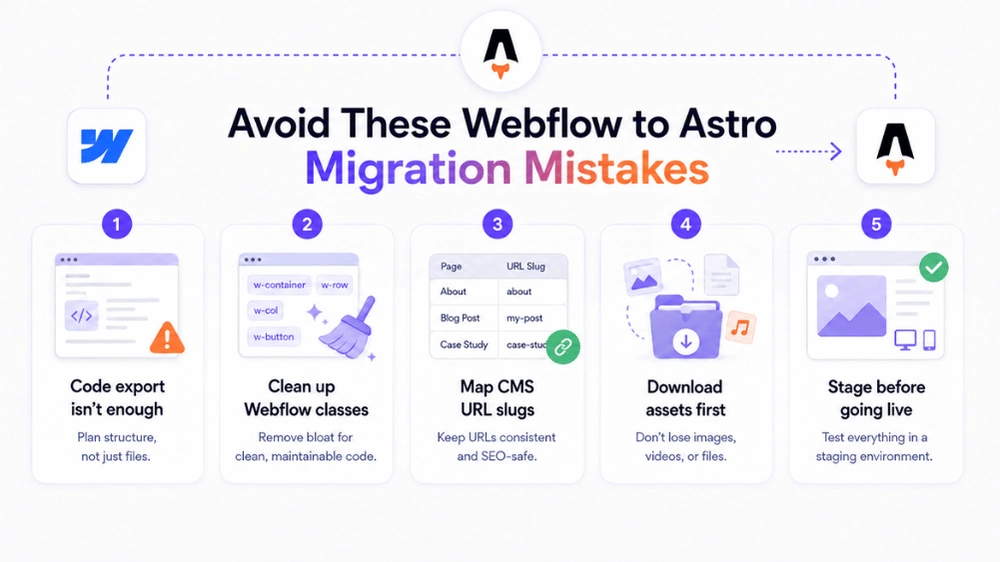
The code export strips every CMS item and replaces dynamic pages with empty templates. The CSS it produces is Webflow’s entire framework, not a stylesheet for your site. Teams that base their migration on the code export spend days debugging broken templates before realizing the published site and the CMS API are the correct sources. Start from those two sources from the beginning.
2. Underestimating the Interaction Rebuild
Webflow’s interactions are the most time-consuming part of any Webflow migration to astro for visually complex sites. They require a complete rebuild in code. The mistake is discovering this mid-migration rather than auditing every interaction at the start and assigning a rebuild strategy to each one. An interaction audit in week one prevents scope explosions in week four.
3. Carrying Over Webflow’s Class Naming Conventions
Auto-generated Webflow class names like div-block-47 and combo class stacks are meaningless outside the Webflow Designer. Using them in the new Astro codebase creates a codebase that is as difficult to maintain as the original Webflow site, without any of Webflow’s visual tooling to compensate. Rebuild with clean, semantically meaningful class names or Tailwind utilities.
4. Missing CMS Collection URL Slug Changes
A Webflow blog post that lived at /blog/my-post-title can automatically become /resources/my-post-title if the new CMS collection is named “resources.” This breaks every inbound link and internal link pointing to the original URL. Accounting for collection slug mapping is where most Webflow migration SEO losses actually occur. Name Astro Content Collections to match the URL patterns of the source Webflow site wherever possible, and set explicit 301 redirects for every case where the slug structure changes.
5. Not Downloading Webflow Assets Before the Subscription Lapses
Webflow hosts all images, videos, and documents on its CDN under URLs tied to your account. Once the subscription is cancelled, those URLs become inaccessible. Any Astro page that references a Webflow CDN asset URL rather than a locally hosted file will show broken images or missing resources. Download every asset during the migration and verify that no Webflow CDN references remain in the final codebase before going live.
6. Skipping the Headless CMS Decision for Editorial Teams
Migrating without deciding how editors will update content after launch creates a situation where the marketing team cannot publish without developer involvement. This is often discovered post-launch when the first content update request arrives. The headless CMS choice — Sanity, Storyblok, Decap, or TinaCMS — needs to be made during the planning phase and configured before the site goes live.
7. Not Setting Up a Pre-Launch Staging Review
Going live from a development environment without deploying to a staging URL first means the DNS cutover is also the quality assurance pass. This is not a safe approach for any site with significant organic traffic. Deploy to a preview URL, complete the full validation checklist, and get sign-off from the content team before touching production DNS.
Conclusion
The Webflow migration to astro process is more technically involved than migrating from WordPress or Wix because Webflow has real technical depth — interactions, a structured CMS, a meaningful asset library — and all of it needs to be accounted for individually. There is no single export that covers the whole site.
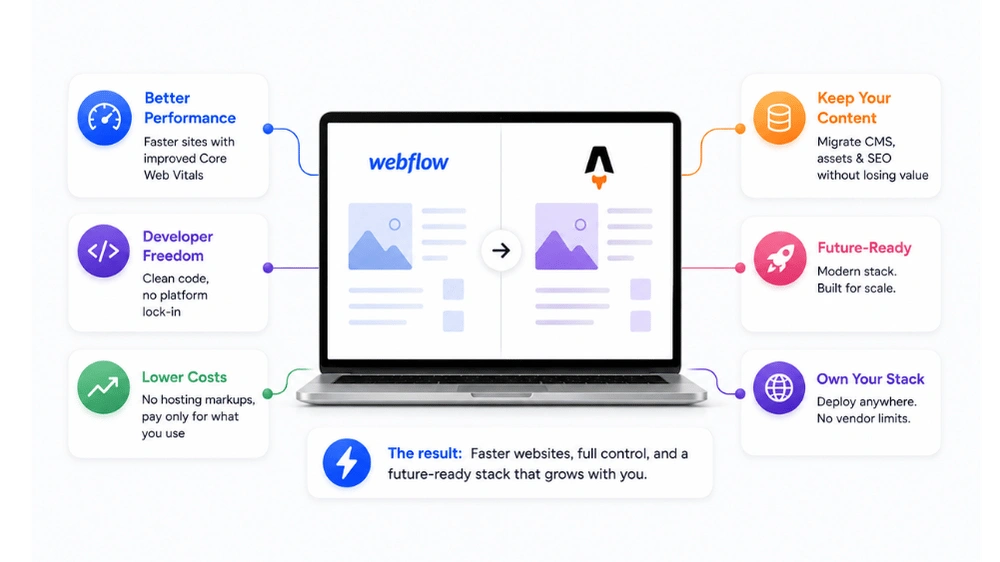
But the outcome on the other side is proportionally better. Astro sites are significantly faster and follow strict semantic HTML patterns, performing better on Core Web Vitals — Google’s key ranking factor. Webflow’s localization costs of $9 to $29 per locale per month drop to zero with Astro’s built-in i18n routing. Hosting fees of $23 to $1,049 per month become $0 on Cloudflare Pages. The codebase is owned, version-controlled, and fully accessible to AI coding agents that can maintain and expand it without designer involvement.
For typical project pricing, see our Astro development cost guide.
EnactOn handles the complete Webflow migration to astro process — CMS data extraction and schema mapping, interaction rebuilds in GSAP and CSS, redirect mapping for every collection URL, headless CMS configuration for your editorial team, deployment to a zero-cost CDN infrastructure, and 30-day post-launch monitoring. Whether your Webflow site has 50 pages or 2,000, the team brings a structured process to how to migrate a Webflow site to Astro without losing the search equity you have built.
Connect with our team of Astro migration experts and get a free scope assessment for your Webflow site today.
FAQS
Will my SEO rankings drop when migrating Webflow site to Astro?
Not if the migration handles URL structure and redirects correctly. Most sites return to their pre-migration ranking baseline within 60 to 90 days, and often improve, because Astro’s performance characteristics give migrated sites a speed advantage. The critical tasks are: crawl the published site before migration to surface every URL (sitemaps alone typically miss 20 to 30 percent), map every URL to its Astro equivalent, configure 301 redirects for all changes, migrate all meta titles and descriptions to frontmatter, and submit the new sitemap to Google Search Console on launch day.
Can I use Webflow as a CMS after migrating to Astro?
Yes. This is the Webflow Cloud plus Astro hybrid model. Designers continue working in the Webflow Designer. DevLink syncs Webflow components into the Astro codebase as native .astro components. Deployment targets Webflow Cloud’s Cloudflare-backed infrastructure. This preserves the visual editing workflow while adding Astro’s performance and developer experience. The trade-off is ongoing Webflow subscription costs and hosting lock-in to Webflow Cloud.
What is the best way to extract Webflow CMS data for an Astro migration?
The Webflow CMS API is the most complete source for structured data. For most collections, the CSV export from the Collections panel (Collections → Select Collection → Export) provides a workable starting point. Reference and multi-reference fields export as plain text and need manual reconstruction. For large collections or complex relational data, scripting the extraction via the Webflow API gives more control. Page content and layout should be extracted by crawling the published site, not from the code export.
How do I replace Webflow interactions in Astro?
Each interaction needs to be rebuilt individually in code. Scroll-triggered reveals and fades use CSS @keyframes with IntersectionObserver. Complex multi-step scroll animations use GSAP ScrollTrigger. Lightweight motion effects use Motion One. Page transitions use Astro’s built-in <ClientRouter /> component. For Webflow animations that have no clear code equivalent, the ZenML approach works: record the animation as video, extract frames, and use an AI agent to generate CSS equivalents from the frame descriptions.
How long does a Webflow migration to Astro take?
Timeline depends on site complexity. Lucky Media cites 8 to 12 weeks as a standard timeline for a full migration, including design system rebuild, data migration, headless CMS setup, and SEO testing. The ZenML case study achieved a one-week timeline for a 2,224-page site using heavy AI assistance. Smaller sites with experienced Astro developers and straightforward CMS structures can complete the migration faster. Sites with complex interactions, large product catalogs, or active editorial teams are at the longer end of that range.
Is there a way to keep Webflow and Astro running simultaneously during migration?
Yes. The recommended approach is to build the entire Astro site on a preview URL before touching the DNS records for the live Webflow site. The Webflow site continues serving traffic normally until the Astro build is complete, validated on staging, and ready for cutover. This parallel-running approach eliminates any downtime and allows full quality assurance before the switch.



![DevOps Best Practices for Startups in 2025 [Tools Included]](/assets/images/Devops--Co9IGgaD_16PllR.webp)