If you are a reseller or partner managing a portfolio of restaurants on GloriaFood, the GloriaFood data export process is one of the first things you need to get right. Oracle has confirmed the platform shuts down on April 30, 2027, and every menu, customer record, and order history sitting inside your clients’ accounts needs to be out before that date. This guide walks through exactly how to do it, what data you need, where it lives, how to pull it, and how to manage the process across a large portfolio.
What Resellers Need to Know Before Starting a GloriaFood Data Export
The first thing most resellers discover when they open their Partner Dashboard looking for an export button is that there is no export button. This is not a bug, it is how GloriaFood was designed.
The Partner Dashboard exists for sales and account management. From it, you can enrol new restaurants under your branding, activate and update services for each client, view your portfolio and service statuses, and access your commission and revenue reports. What it does not include is any option to export restaurant data.
Every menu, every customer record, every order history lives inside each restaurant’s individual admin account. The export tools are inside that account too. To complete a GloriaFood data export for any restaurant in your portfolio, you will either need to log in as that restaurant with their permission, or walk the restaurant owner through running the exports themselves and sending you the files.
This is the reality the entire process is built around and two things follow from it directly:
You will be doing this one restaurant at a time. There is no batch export. Every restaurant in your portfolio is a separate export job.
You need the restaurant’s explicit written consent. The customer database belongs to the restaurant, not to you. Accessing that data without documented authorisation is a compliance risk under GDPR, the Indian DPDP Act, and most other data protection frameworks that apply to your clients. Get consent in writing before you touch anything.
The cleanest approach and the one that works at scale is to send each restaurant a short coordination message, walk them through the steps, and have them either run the exports with you on a screen share or send you the files directly.
The Three Data Sets You Need From Every Restaurant
Before you contact a single restaurant owner, get clear on exactly what you are asking for. A complete GloriaFood data export covers three distinct data sets, each stored in a different location inside GloriaFood, each exported in a different format:
| Data Type | What It Contains | Where It Comes From | Format |
|---|---|---|---|
| Menu | Categories, items, prices, sizes, modifiers, choices, add-ons, item images | Fetch Menu API | JSON |
| Customers | Name, email, phone, addresses, total orders, total spend, last order date | Reports → Lists → Clients | Excel or PDF |
| Order History | Every past order with date, items, modifiers, totals, payment method, fulfilment type, status | Reports → Lists → Orders | Excel or PDF |
Treat these as three separate tasks. Bundling all three into one instruction confuses restaurant owners who are not technical. Send clear, separate instructions for each or better, run all three exports together on a single screen-share call per restaurant.
Related: GloriaFood Migration Checklist for Resellers
How to Export the GloriaFood Restaurant Menu
The menu is the most critical part of the GloriaFood data export. Customers and orders can be archived or imported into a CRM, but a corrupted menu means broken ordering on day one of the new platform. GloriaFood’s Fetch Menu API is the correct method manually copying menu items from the menu editor is slow, error-prone, and almost always loses modifier group structure.
Here are the exact steps to give the restaurant owner:
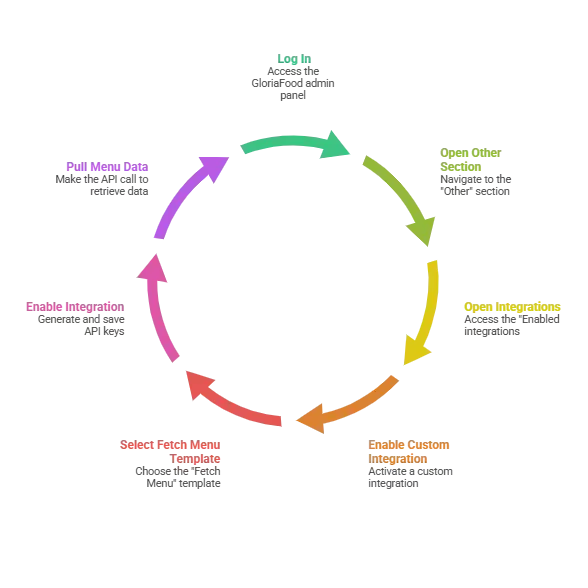
Step 1: Log in to the GloriaFood admin panel Open gloriafood.com and sign in with the restaurant’s credentials.
Step 2: Open the Other section In the left-hand sidebar of the admin dashboard, click on Other.
Step 3: Open Enabled Integrations Inside the Other section, click on Enabled integrations.
Step 4: Enable a custom integration Click the Enable custom integration button. A small configuration window will open.
Step 5: Select the Fetch Menu template In the Template dropdown, choose Fetch Menu. This tells GloriaFood that you want to pull menu data via API.
Step 6: Click Enable Once enabled, GloriaFood will generate two values: a Restaurant Key (also called the Restaurant Token) and a Master Key. Both keys must be saved immediately. They are the credentials that authenticate the API call. Store them in a password manager not in an email or a spreadsheet column.
Step 7: Pull the menu data This is the technical step that most restaurant owners cannot complete themselves. Have them generate the keys through steps 1 to 6, send those keys to you, and you or your developer make the API call to GloriaFood’s menu endpoint. The response is a JSON file containing the entire menu structure: every category, every item, every modifier group, every choice, with prices and image URLs.
Save the result as restaurant-name_menu.json. This single file is sufficient to fully recreate the menu on any modern ordering platform.
Do not ask non-technical restaurant owners to run the API call themselves. Their job is to generate the keys. Your job is to pull the data.
How to Export the GloriaFood Customer List
Customer data lives in the reporting module, and the export is built directly into the GloriaFood UI. Any restaurant owner can run this themselves with no technical knowledge required.
Walk the restaurant owner through these steps:
-
Log in to the GloriaFood admin panel.
-
From the sidebar, go to Reports.
-
Open the Lists view. In some account versions the path is Reports → Essentials → Lists.
-
Switch the toggle to the Clients view.
-
Set the date range to All time. This ensures the export includes every customer who has ever ordered, not just recent ones.
-
Click Export.
-
Choose Excel as the format. PDF is also available but is difficult to import into a new platform. Always use Excel for migration purposes.
-
Save the downloaded file as
restaurant-name_customers.xlsx.
The exported file contains customer name, email, phone number, saved delivery addresses, total number of orders, total spend, and the date of their last order. This is enough to import into a new ordering platform’s customer database, into a CRM, or into a marketing tool for a re-engagement campaign after the migration.
Related: GloriaFood Partner Program Alternatives for Resellers
How to Export the GloriaFood Order History
Order history sits in the same Reports → Lists module, under a different view. The flow is nearly identical to the customer export:
-
From the same Reports → Lists screen, switch the view to Orders.
-
Set the date range. For a full GloriaFood data export, choose All time. If the restaurant has years of high-volume history, GloriaFood may struggle to export everything in one file. In that case, run the export year by year and merge the files afterwards.
-
Click Export → Excel.
-
Save as
restaurant-name_orders.xlsx.
The export contains an order ID, timestamp, customer reference, line items with modifiers, item-level prices, totals, payment method, order type (delivery, pickup, or dine-in), and fulfilment status (accepted, completed, cancelled).
This data is used for analytics, accounting reconciliation, and if the restaurant runs a loyalty program for seeding loyalty points or tier status on the new platform so returning customers do not lose what they have earned.
A Template Message to Send Your Restaurant Clients
The single biggest factor in how fast you complete the GloriaFood data export across your portfolio is how easy you make it for restaurant owners to act. Here is a template you can send directly, adjusted to match how you normally communicate with your clients:
Subject: 5 minutes of your time: exporting your restaurant data for the upcoming platform upgrade
Hi [Restaurant Owner Name],
As part of an important upgrade to [Your Platform Name], we will be moving your account to a new, more powerful system. To make sure none of your menu, customer list, or order history is lost in the transition, we need to export your existing data before the upgrade.
I can handle most of this on my end, but there are two short tasks that need to happen inside your current admin account:
1. Generate two API keys so I can pull your menu structure cleanly. Steps: log in to your admin → Other → Enabled integrations → click Enable custom integration → in the Template dropdown, select Fetch Menu → click Enable → copy the Restaurant Key and Master Key and reply to this email with both.
2. Run two quick Excel exports for your customer list and order history. Steps: go to Reports → Lists → switch the view to Clients, set the date range to All time, click Export → Excel. Then switch the view to Orders and do the same. Reply with both files attached.
The whole thing should take under 10 minutes. If you would rather do this together on a quick call, I am happy to screen share and walk you through it.
Thanks, and let’s get your restaurant ready for what’s next.
[Your Name] [Your Company / Platform Name]
Send this message to your portfolio staggered over a couple of weeks rather than all at once. Staggering gives you time to process each response properly and avoids a situation where fifty restaurants send you files on the same day.
How to Manage the GloriaFood Data Export Across Your Full Portfolio
Five restaurants is manageable with a spreadsheet and a folder. Fifty or two hundred requires a proper system. Here is a workflow that holds up at scale:
Build a tracking sheet. One row per restaurant. Columns for: Restaurant Name, Owner Email, Outreach Sent, API Keys Received, Menu Pulled, Customers File Received, Orders File Received, Migration Status, Notes. Update it after every interaction.
Batch your outreach by priority. Active, high-revenue restaurants first. Inactive accounts last or skip them entirely if the owner has been unresponsive, as there is no point migrating a restaurant that is not operating.
Standardise your file naming and folder structure. A shared cloud drive with one folder per restaurant works well. Inside each folder: the menu JSON, the customer Excel, the order Excel, and a short notes file flagging any issues (for example, modifier groups that did not import cleanly and need manual review).
Store credentials securely. The Restaurant Key and Master Key are authentication credentials. They belong in a password manager, never in a spreadsheet column or an email thread.
Schedule a final re-export window. Migrations stretch over weeks, and restaurants keep accepting orders during that time. Plan a final data pull 24 to 48 hours before each restaurant’s actual cutover so the data on the new platform is current.
Have a fallback for non-responsive owners. Some of your restaurants will not respond to the first message, or the second. Set a clear internal deadline for example, 30 days before the migration date follow up twice, and then escalate to a phone call or deprioritise them in the migration schedule.
What to Do With the Exported Data
Once you have the three files for each restaurant, the next question is where they go. The new platform you move your portfolio to needs to be able to ingest exactly this format: a menu JSON from the Fetch Menu API, a customer Excel file, and an order history Excel file. When transitioning to modern restaurant management software, having flexible data ingestion prevents downtime and preserves years of customer relationships. Not every alternative platform handles this cleanly, and some require significant rework before the data is usable in their system.
This is where the flexibility of the destination platform matters significantly. If you are evaluating options, it is worth asking every platform vendor directly: can you import a GloriaFood Fetch Menu JSON as-is? Can you load the customer Excel into your customer database without reformatting? What happens to order history is it archived, searchable, or importable into a loyalty system?
For a full comparison of platforms worth evaluating, see Top GloriaFood Alternatives in 2026.
If you are considering owning your platform outright rather than moving to another SaaS vendor, EnactOn’s GloriaFood clone is built specifically for resellers and partners making this transition fully white-labeled, fully customizable, and designed to ingest GloriaFood export formats directly.
Connect with the EnactOn team to discuss your migration.
Start the GloriaFood Data Export Process Now
Data migrations do not go well when rushed. Restaurants that wait until late 2026 to start will find themselves dealing with stale logins, missing credentials, unresponsive owners, and broken modifier groups two weeks before their cutover deadline.
If you are a reseller, the right move is to start the coordination with your restaurants immediately. Get the API keys flowing now. Have your top 20 percent of accounts fully exported by mid-2026. The remainder can follow on a steady cadence over the months after.
The GloriaFood data export process is not technically difficult. It requires coordination with each restaurant, one at a time, with clear instructions and a proper tracking system. Start that coordination early and you will be in a strong position long before April 2027.
Frequently Asked Questions
Can resellers export GloriaFood data from the Partner Dashboard?
No. The GloriaFood Partner Dashboard is designed for account management and sales, not data access. All export tools for menus, customers, and order history are inside each individual restaurant’s admin account. Resellers need to either access each restaurant’s account with their permission or coordinate with restaurant owners to run the exports themselves.
What format does the GloriaFood menu export in?
The GloriaFood menu exports as a JSON file via the Fetch Menu API. This file contains the full menu structure including categories, items, sizes, modifier groups, choices, prices, and image URLs. It is the correct format for importing into any modern ordering platform.
How long does a full GloriaFood data export take per restaurant?
Generating the API keys and running the customer and order exports takes most restaurant owners under 10 minutes. The menu API pull on your end is near-instant once you have the keys. The coordination getting a response from the restaurant owner is typically where the time is spent.
What happens if a restaurant has years of high-volume order history?
GloriaFood may struggle to export very large order histories in a single file. In that case, run the order export year by year and merge the resulting files. The data structure is consistent across exports, so merging is straightforward.
Do I need the restaurant owner’s permission to access their GloriaFood account?
Yes. Customer data belongs to the restaurant, not to the reseller. Accessing or exporting it without documented authorisation creates compliance exposure under GDPR, the Indian DPDP Act, and most other applicable data protection frameworks. Always get explicit written consent before accessing any restaurant’s account.